ParkComfy user guide
Licence plate based parking access for Axis cameras – for operators who work with the app every day, and for administrators who set it up.
1. Introduction
ParkComfy is an application (ACAP) that runs on an Axis network camera. It receives the licence plates read by AXIS License Plate Verifier (ALPV) cameras, decides whether the vehicle may enter or leave, opens the barrier, keeps count of the vehicles in each parking zone and records everything in its logs.
This guide has two parts. Part A describes the pages used in daily operation (security staff, reception). Part B is for administrators and installers.
2. How ParkComfy works
A vehicle arrives at a barrier. The ALPV camera reads the plate and sends the read (with the plate image, vehicle data and direction) to ParkComfy. ParkComfy then:
- finds the zone that uses this camera, and whether the read is an entry or an exit;
- applies a plate correction if the camera usually reads this plate wrongly;
- looks for a permit for the plate and checks its validity, its zones and its strong criteria;
- checks the zone rules: opening hours, who may park here and when, capacity and group limits, lockdown;
- opens the gate (or leaves it closed), updates Currently parked and writes an App log entry with the reason.
Leaving a zone is never blocked by time rules: a vehicle that is parked in a zone can always leave.
| Term | Meaning |
|---|---|
| ALPV camera | A camera running AXIS License Plate Verifier that sends its reads to ParkComfy. It may be the camera that runs ParkComfy itself or another camera on the network. |
| Zone | A parking area with its entry and exit cameras, its gates, its capacity and its access rules. |
| Permit | A plate allowed to enter, with a holder (name, company, phone, e-mail), a group, a validity and optional zones and strong criteria. |
| Permit group | A set of permits that are handled together, e.g. Staff, Suppliers, Visitors. Zones grant access and entry times per group. |
| Time profile | Days and hours (with exception days such as public holidays). Used by roles, permits, zone rules and zone opening hours. |
| Role | The permissions of app users: which pages, which zones, and when (time profile). |
3. Getting started
Requirements
- AXIS OS 12.9 or later on the camera that runs ParkComfy (ARTPEC-8/9 camera, aarch64).
- A password policy on that camera: System › Accounts › Password policy set to Length or Complexity. ParkComfy uses the same policy for its own users and backup passwords. Until both requirements are met, ParkComfy shows a preparation screen and does not process plate reads.
- AXIS License Plate Verifier on the cameras that read the plates.
- Recommended: an SD card encrypted on the camera (System › Storage). ParkComfy then keeps its data and plate images on the card.
- The same time source (NTP) on every camera, so that the times of the reads match.
- A license for this camera – a full license, or a free 60-day trial license. Both are files bound to the camera’s serial number (see chapter 22). Without a license the pages open, but ParkComfy does not process plate reads or open gates.
Opening ParkComfy
| Address | Who |
|---|---|
https://<camera>/local/parkcomfy/admin/or Apps › ParkComfy › Open in the camera web interface | Axis administrators of the camera – every page, including Settings. |
https://<camera>/local/parkcomfy/app/ | App users (operators, managers) with their own ParkComfy account – the pages their role allows. |
Setting up – in this order
- Settings › Identification: name the installation (shown in the top bar and on the sign-in page).
- ALPV cameras: add the cameras; ParkComfy sets up their event push for you.
- Time profiles: create the time windows you need (office hours, shifts) and the exception days (public holidays).
- Permits › Groups and Permits: create the groups and add or import the permits.
- Parking zones: create the zones – cameras, gates, opening hours, who may park and when, capacity.
- Roles and Users: give the operators their accounts.
- Gate control: add the gates that operators open by hand, with their camera images.
- Settings › Diagnostics: test with the Metadata monitor, a test read or the simulation – then watch the App log.
- Settings › Maintenance: make a full backup.
4. The user interface
The menu on the left lists the pages your account may open. On a wide screen the menu stays in place while the page scrolls; Collapse narrows it to icons. The top bar shows the installation name and, on the right:
| Button | Use |
|---|---|
| Appearance | Light, dark, or follow the system setting. |
| User guide | Opens this guide in the language of the app (English for custom languages). |
| Language | Display language of the app for you. |
| Account | Your name, change password, sign out. |
Most pages share the same building blocks: tiles with key figures at the top, filters (zone chips, search fields and drop-downs in the table header), and tables with 25, 50 or 100 rows per page. Dialogs close only with their buttons, the × or Esc – a click next to a dialog does not lose what you typed. Every change is recorded in the System log.
Exports are always encrypted
Every Export CSV (Currently parked, Statistics, App log, System log, Permits) asks for a file password that follows the camera’s password policy. The file you get is a ZIP archive encrypted with AES-256 that holds the CSV file. Open it with 7-Zip, WinRAR, WinZip or another program that supports AES-encrypted ZIP files – the ZIP support built into Windows and macOS may not open it. The password cannot be recovered, and every export is recorded in the System log.
Part A – Daily use
5. Currently parked
Every vehicle that entered a zone and has not left it yet, in order of entry.
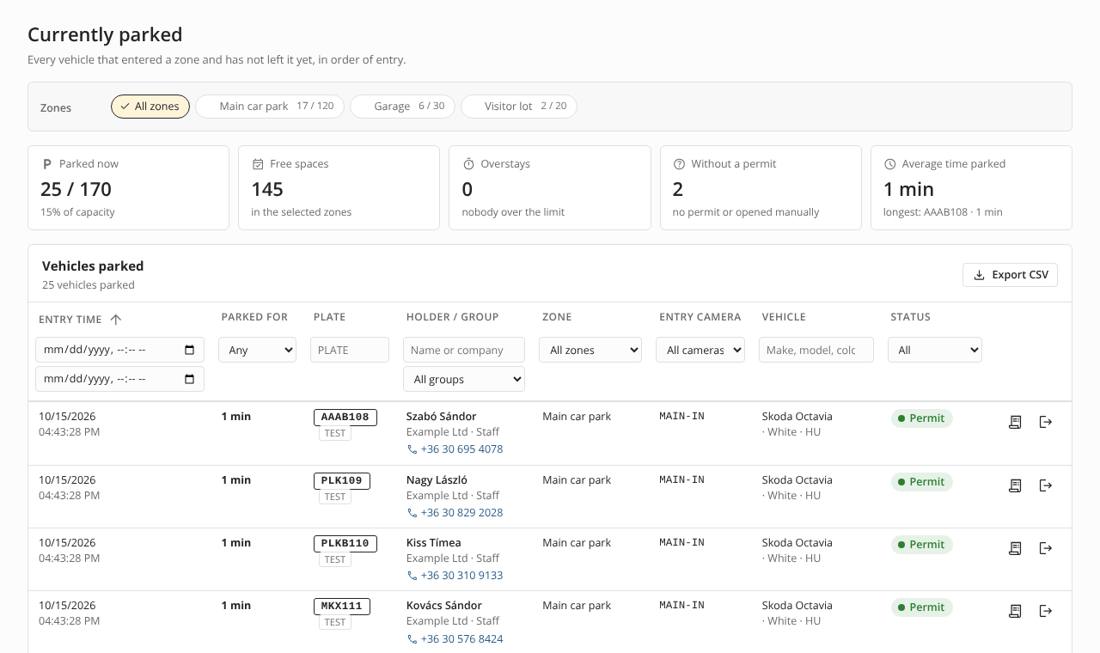
- Zone chips filter the page; click more chips to combine zones. A red chip and the number next to the menu item show zones with a problem (full, or vehicles over their limit).
- Tiles: parked now and capacity, free spaces, overstays, vehicles without a permit, average and longest time parked.
- Holder / group shows the permit holder; if the permit has a phone number and your role may see the permits, it is a link you can call directly.
- Vehicles without a permit are those let in by hand or allowed by an “Any vehicle” zone.
- Export CSV saves the filtered list.
6. Gate control
Camera images of the gates and manual opening – for vehicles that have to be let in or out by hand.
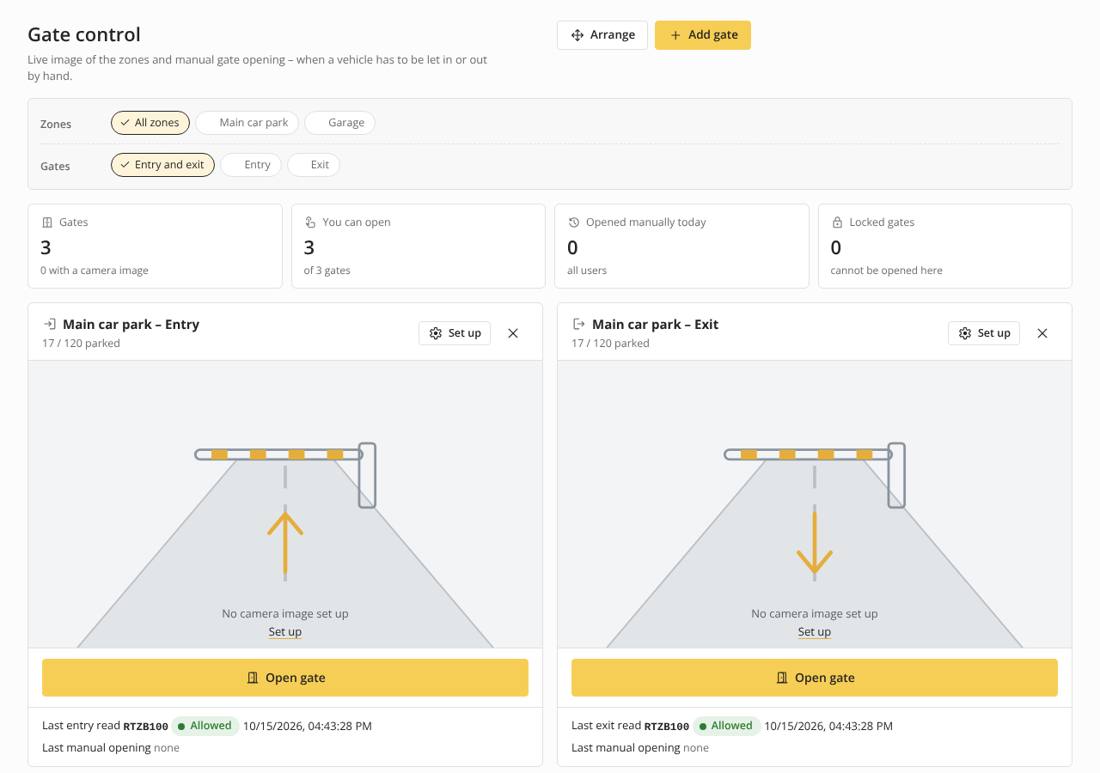
Opening a gate by hand
- Check the image – the gate opens for whoever is in front of it.
- Press Open gate, choose a reason (visitor without permit, delivery, permit not recognised, plate not readable, emergency, other).
- Optionally enter the plate: at an entry the vehicle is added to Currently parked as “Gate opened manually”; at an exit it is removed.
- If the zone leads on to other zones, Destination › Continues to … gives the vehicle a guest pass: the gates on the way and at the destination open for its plate.
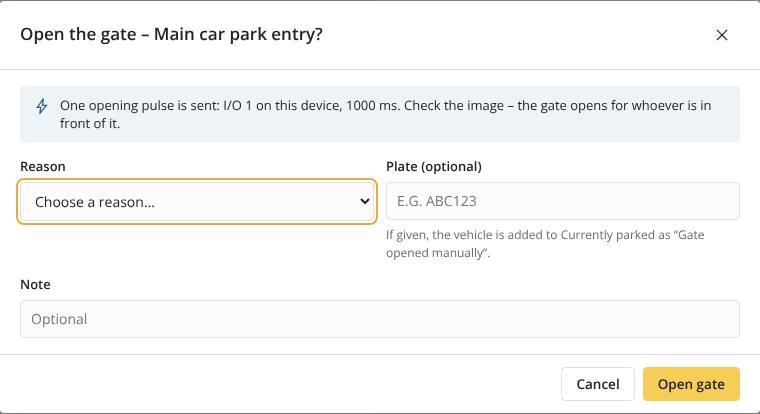
The button is grey when the gate is locked (Lockdown), when the gate is controlled by another system, or when your role may only view this gate.
Live view
A card shows a snapshot; Start live view streams the image for the set time (+1 min extends it). The live view can also start by itself on a refused read.
Arranging your cards
Press Arrange, then drag the cards or use the arrows on each card. The order is saved for your account only; Default order restores the original order.
For administrators: adding gates
The page starts empty. Add gate lists the entry and exit gates of the zones that are not on the page yet. Set up on a card sets the camera image (a camera of the ALPV list, another Axis camera over VAPIX, or any JPEG snapshot URL), the live-view mode and the manual opening (same as the zone’s gate, a device I/O port or an HTTP command). × removes a gate from the page; the gate itself keeps working.
7. Overstays
Vehicles parked longer than allowed, and the rules that set the limits.
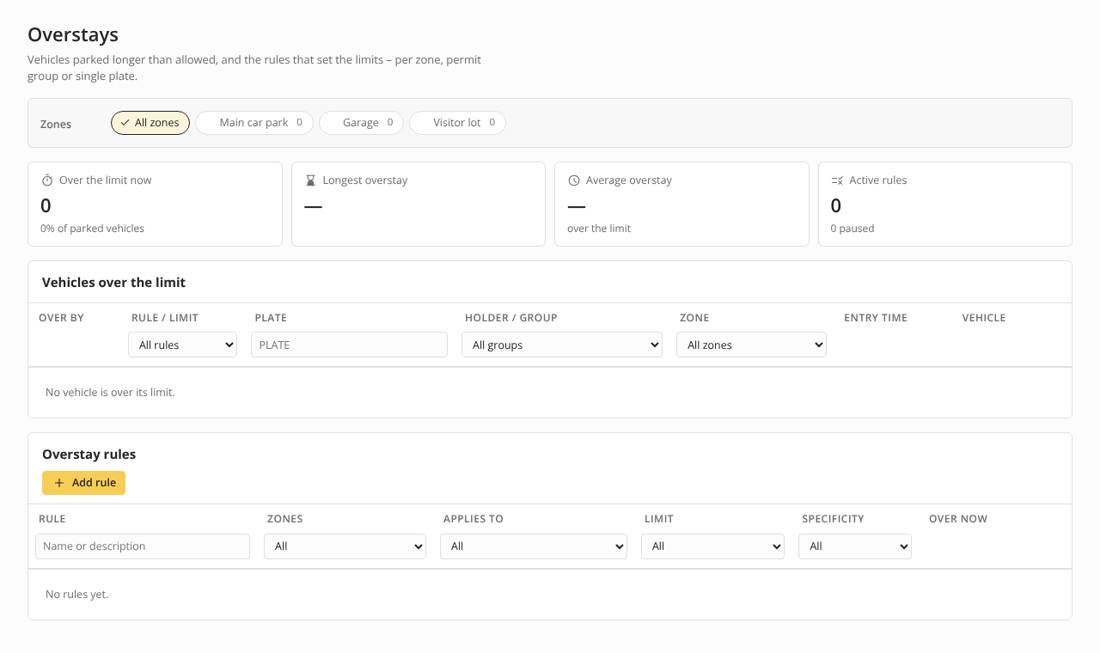
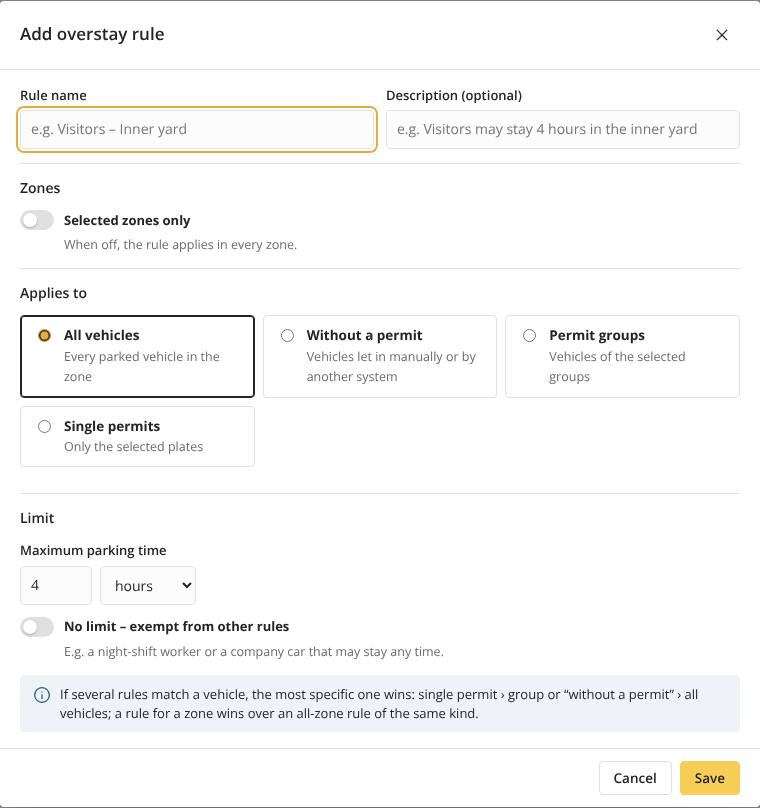
A rule applies to all vehicles, to permit groups, to vehicles without a permit, or to single plates – in every zone or in selected zones – with a maximum parking time or No limit (exempt from other rules). When more rules match, the most specific one wins (single plate before group before all vehicles; a zone-specific rule before an all-zone rule). The Specificity column shows the order.
8. Statistics
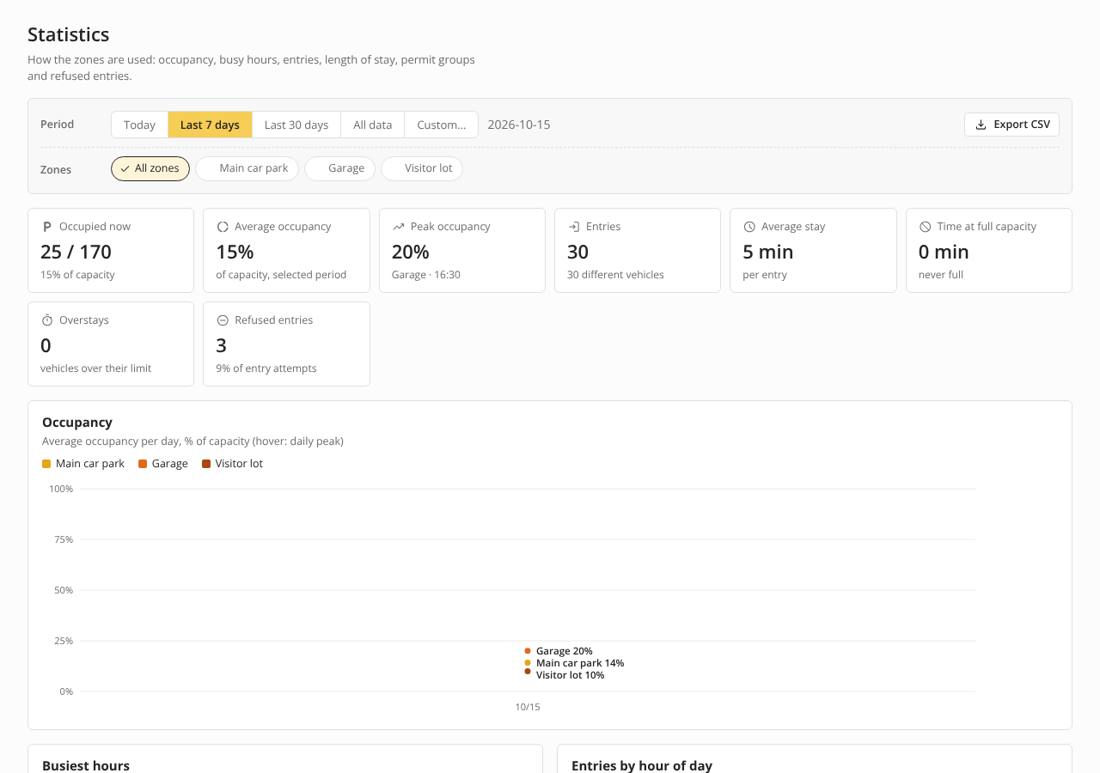
Occupancy, busy hours, entries, length of stay, permit groups and refused entries for today, the last 7 or 30 days, all data or a custom period. Click zone chips to show one or more zones. Export CSV saves the figures. Figures are collected every 15 minutes; how long they are kept is set in Settings › Logs.
9. Lockdown
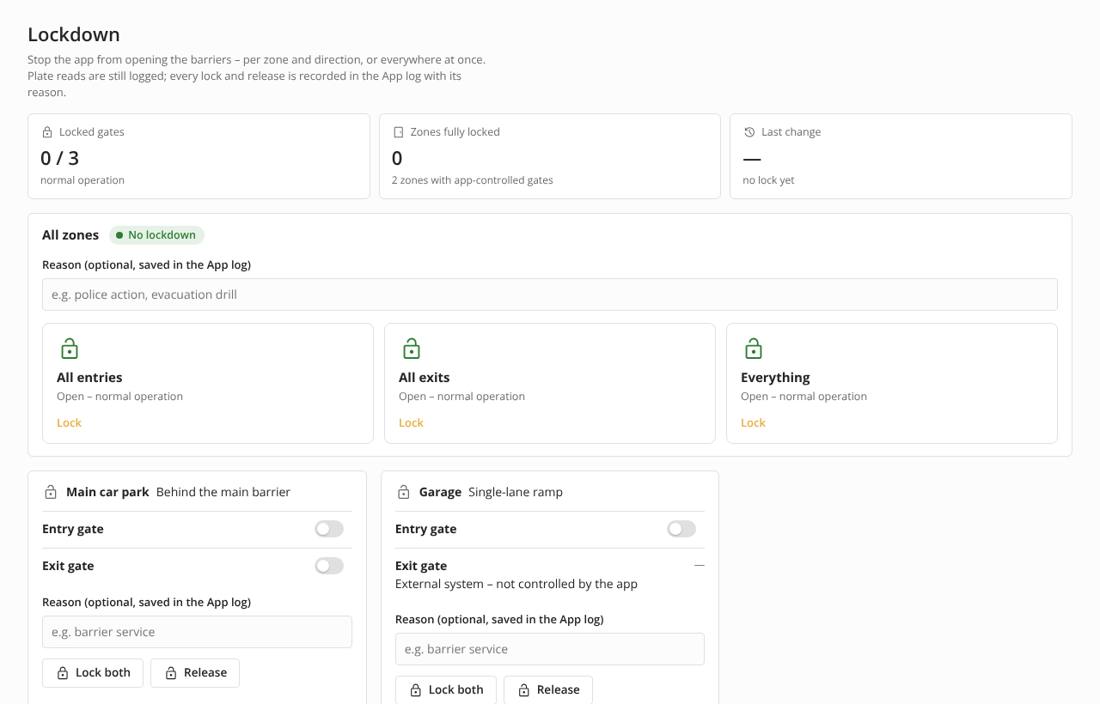
Stops the app from opening the barriers – all entries, all exits, everything, or per zone and direction. Plate reads are still logged. Enter a reason (optional); every lock and release is recorded in the App log. A locked gate cannot be opened on Gate control either.
10. App log
Every plate read and manual opening, with what the app did and why.
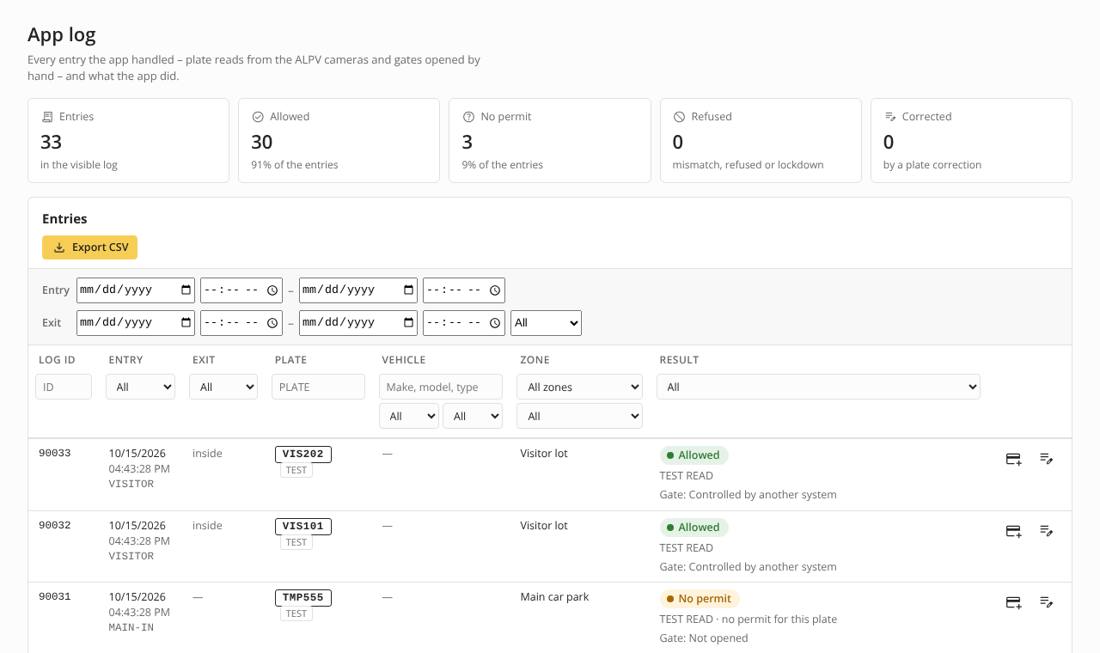
- Filter by entry/exit time, plate, vehicle data, zone and result (allowed, no permit, refused, mismatch, zone full, zone closed, lockdown, test).
- The row actions add the read as a permit, add its vehicle data to an existing permit (strong criteria), or create a plate correction.
- Plate and vehicle images are shown when image saving is on (Settings › Logs).
- Export CSV exports the filtered entries. The log is filtered and paged on the camera, so it stays fast with many entries.
Part B – Administration
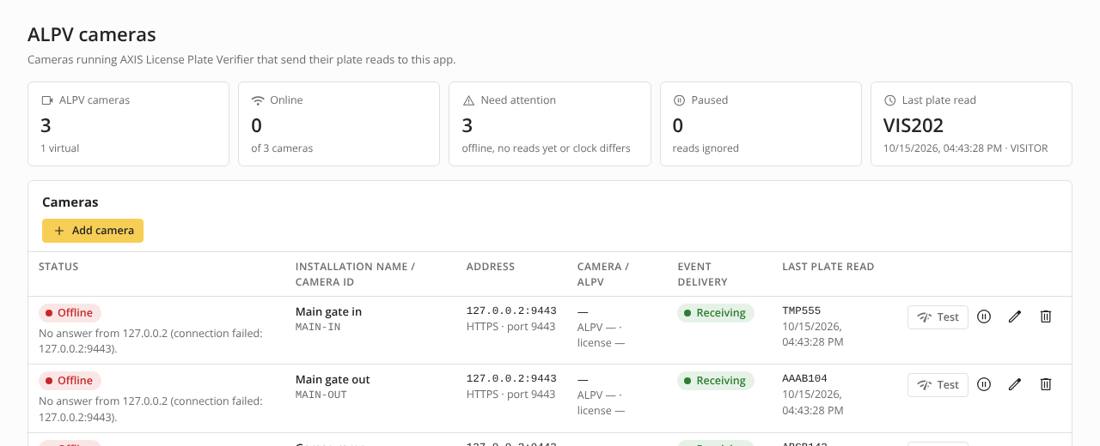
11. ALPV cameras
The cameras that send plate reads to ParkComfy. The camera running ParkComfy can be one of them.
Adding cameras
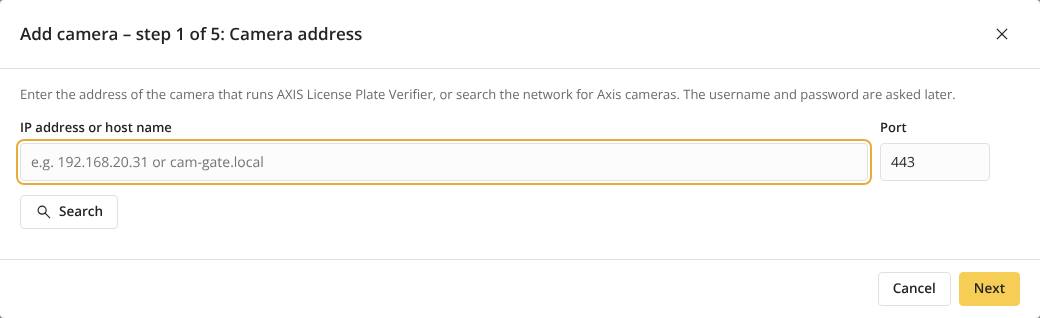
- Add camera searches this network segment or an IP range, or takes an address you enter.
- Choose the cameras, enter an Axis account with admin rights (needed to write the ALPV settings).
- Give each camera an installation name and a Camera ID (2–32 characters, unique).
- ParkComfy sets up the ALPV event push (HTTPS) and, optionally, the heartbeat, and reads the settings back.
- Status: online, offline, no reads yet, clock difference (set every camera to the same NTP server).
- Event delivery: whether reads arrive. Test sends a test event through ALPV.
- HTTPS: ALPV accepts this camera’s certificate when its HTTPS setting is Self-signed; with a CA-signed certificate the certificate must be issued for the address used in the push (SAN). Unencrypted HTTP to cameras is off unless allowed in Settings › Security › Certificates.
- Pause ignores the reads of a camera (not processed, no gate, not counted).
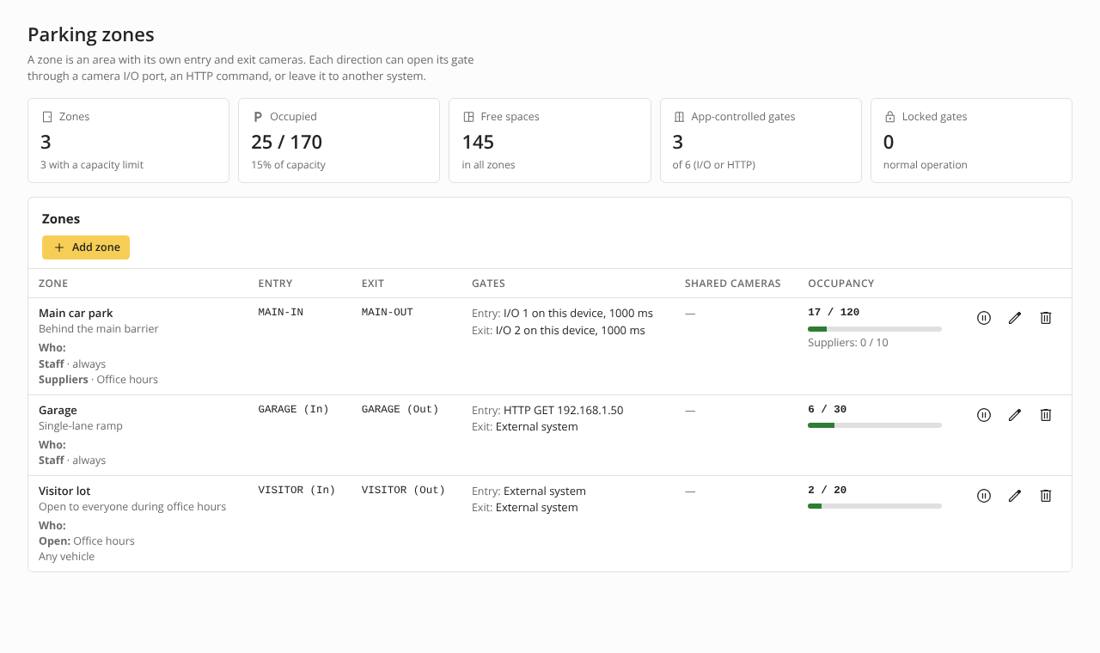
12. Parking zones
A zone is an area with its own entry and exit cameras, gates, rules and capacity.
Cameras and direction
- Entry cameras and exit cameras, or Same camera for entry and exit for a single lane. With one camera the direction comes from ALPV, or is decided by presence: a plate that is parked here is an exit, otherwise an entry (a repeat read within the set seconds is ignored).
- A camera may be the exit of one zone and the entry of another (a barrier between two car parks) – one read closes the stay in the first zone and opens it in the second.
- Pass-through zones: vehicles allowed in an inner zone may drive through this outer zone within a set time without parking here.
Gate control
| Option | How the gate opens |
|---|---|
| Device I/O port | A pulse on an output of this camera or another Axis device (e.g. AXIS A9161 / A9210), with pulse length and active state. Test gate sends one pulse. |
| HTTP command | A GET or POST request to a relay or barrier controller (HTTPS recommended). |
| External system | Another system opens the gate. It can report back “let in” / “refused” over HTTP; until then the vehicle is not counted. |
| Not available | Reads of this direction are logged only. |
Who can park here
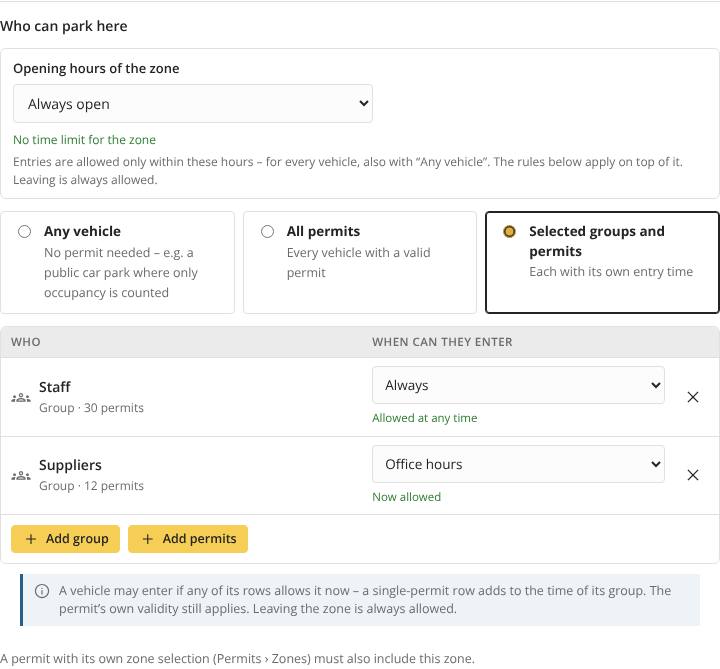
- Opening hours of the zone: a time profile; outside it no vehicle may enter – whatever is chosen below, also with “Any vehicle”. Leaving is always allowed.
- Any vehicle: no permit needed – e.g. a public car park where only occupancy is counted.
- All permits: every vehicle with a valid permit (note: also permits imported from Active Directory).
- Selected groups and permits: a table of groups and single permits, each with its own entry time (Always or a time profile). Add rows with + Add group / + Add permits – search, tick, choose the entry time, Add.
Capacity
Limit the number of parked vehicles sets the spaces of the zone; when it is full the entry gate stays closed (or nothing happens and it is only reported). Limit spaces per permit group reserves or caps spaces for groups. Vehicles on the way (transit, external system) are counted.
13. Permits
The plates allowed to enter. The page has four tabs: All permits, Groups, Expired permits and Inactive permits; the last two show a red number when they list something.
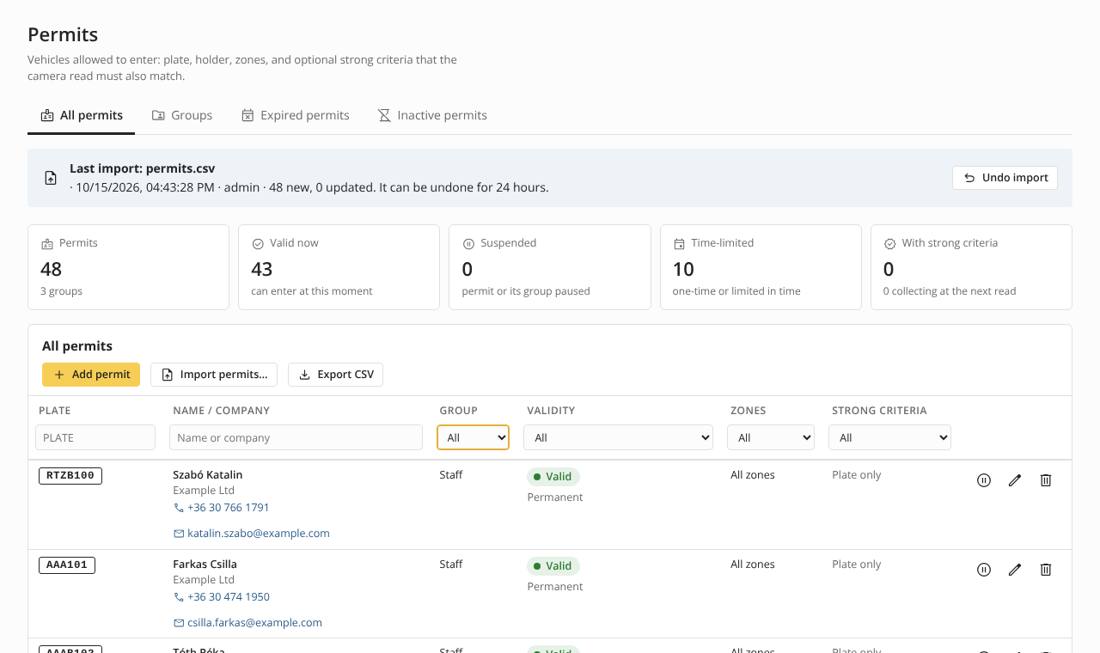
Adding a permit
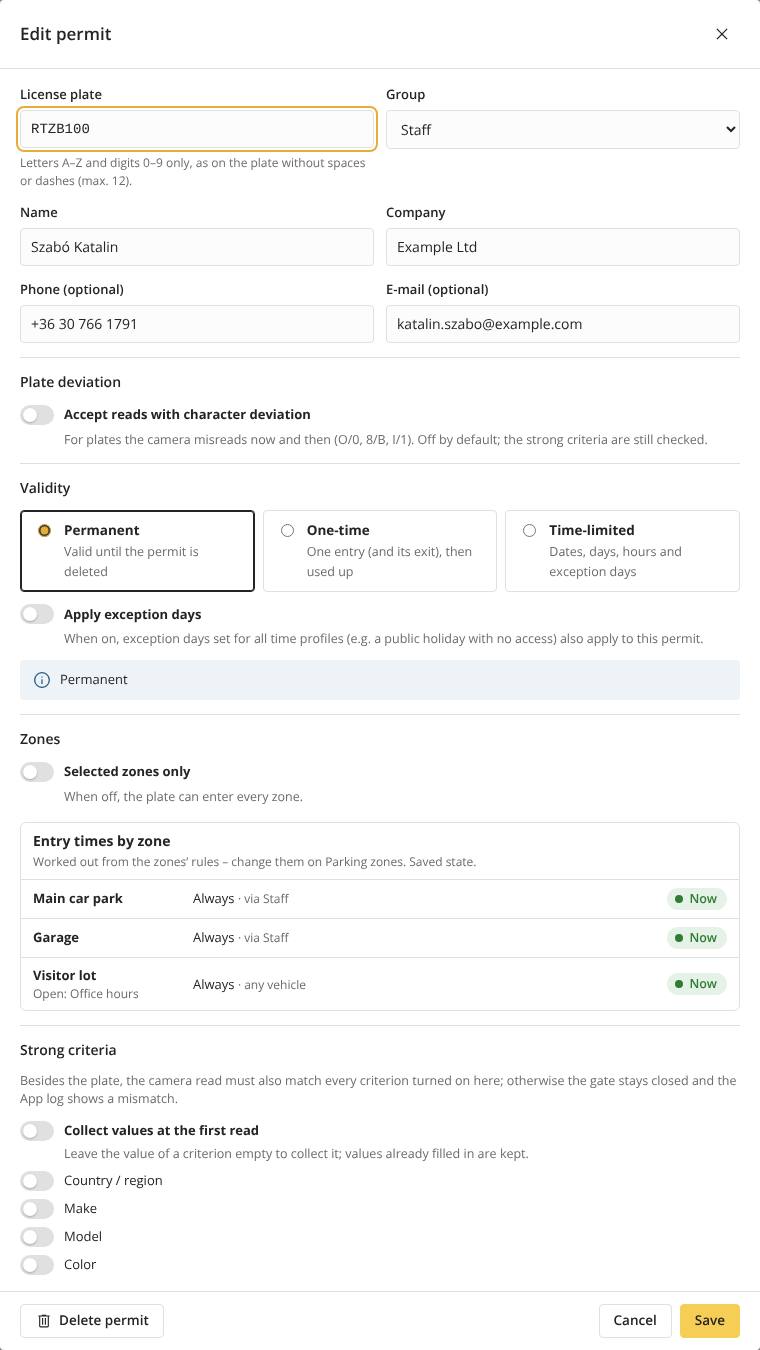
| Field | Notes |
|---|---|
| Plate | 2–12 letters A–Z and digits. Plate deviation accepts reads that differ in 1–3 characters. |
| Name, company, phone, e-mail | The holder. Phone and e-mail are optional; the phone is shown on Currently parked and Overstays to users who may see the permits. |
| Group | Zones grant access and entry times per group. |
| Validity | Permanent; One-time (used at the first allowed entry, optionally only in a time window); Time-limited (a date range with own days and hours, or a time profile). Exception days can apply. |
| Zones | Off: every zone that admits the permit. On: only the selected zones. Entry times by zone shows where and when the permit may enter. |
| Strong criteria | Country, make, model and colour that the camera read must also match. Collect fills them in from the next read. |
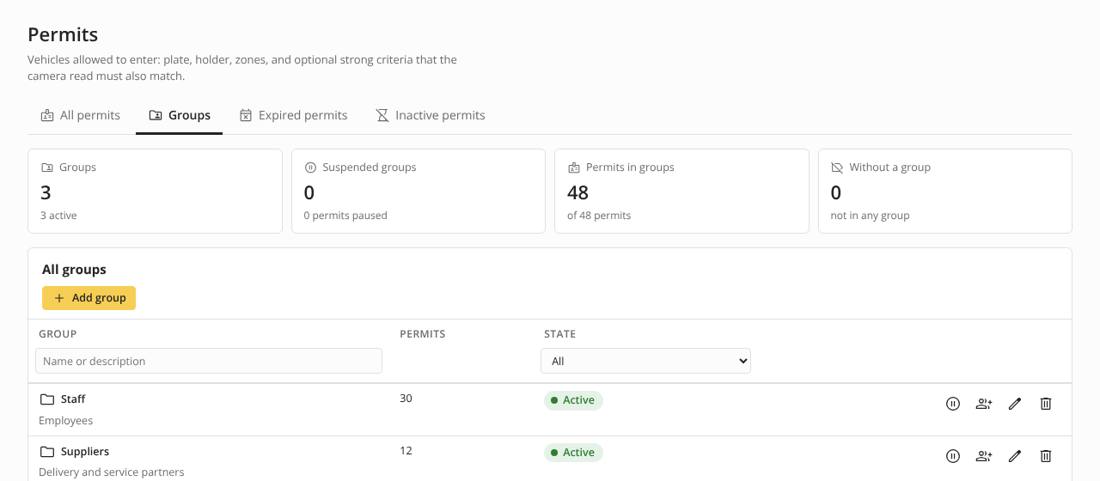
Groups
Create, suspend, rename and delete groups. Members of the group opens a searchable, paged list of all permits: tick the members (ticking a permit of another group moves it here), or use the header box to tick every matching permit. Changes are saved together and recorded in the System log.
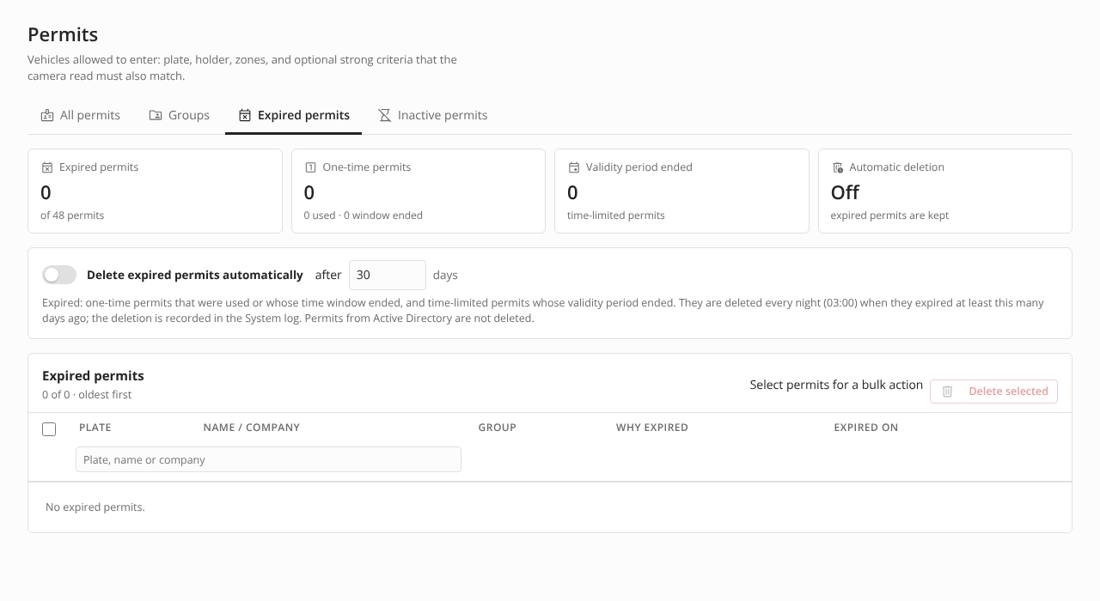
Expired and inactive permits
- Expired: one-time permits that were used or whose time window ended, and time-limited permits whose validity ended. Delete expired permits automatically after X days deletes them every night at 03:00 (recorded in the System log). Permits from Active Directory are never deleted here.
- Inactive: permits that no camera read for X days (or since they were added). They are only listed – suspend or delete them in bulk.
Import and export
Import permits… (Manager role and Axis administrators only) loads many permits from a CSV file. The camera checks the file itself before anything is saved:
- UTF-8 text only, at most 400 KB and 5000 permits; separator
;or,(detected); - every field against a whitelist – plate format, length, no control characters or
< >, no spreadsheet formulas (= + - @at the start), existing groups, zones and time profiles, valid dates, phone and e-mail; - a preview shows every row as new, update, unchanged or error. A file with errors imports nothing; the import is saved all together and can be undone for 24 hours.
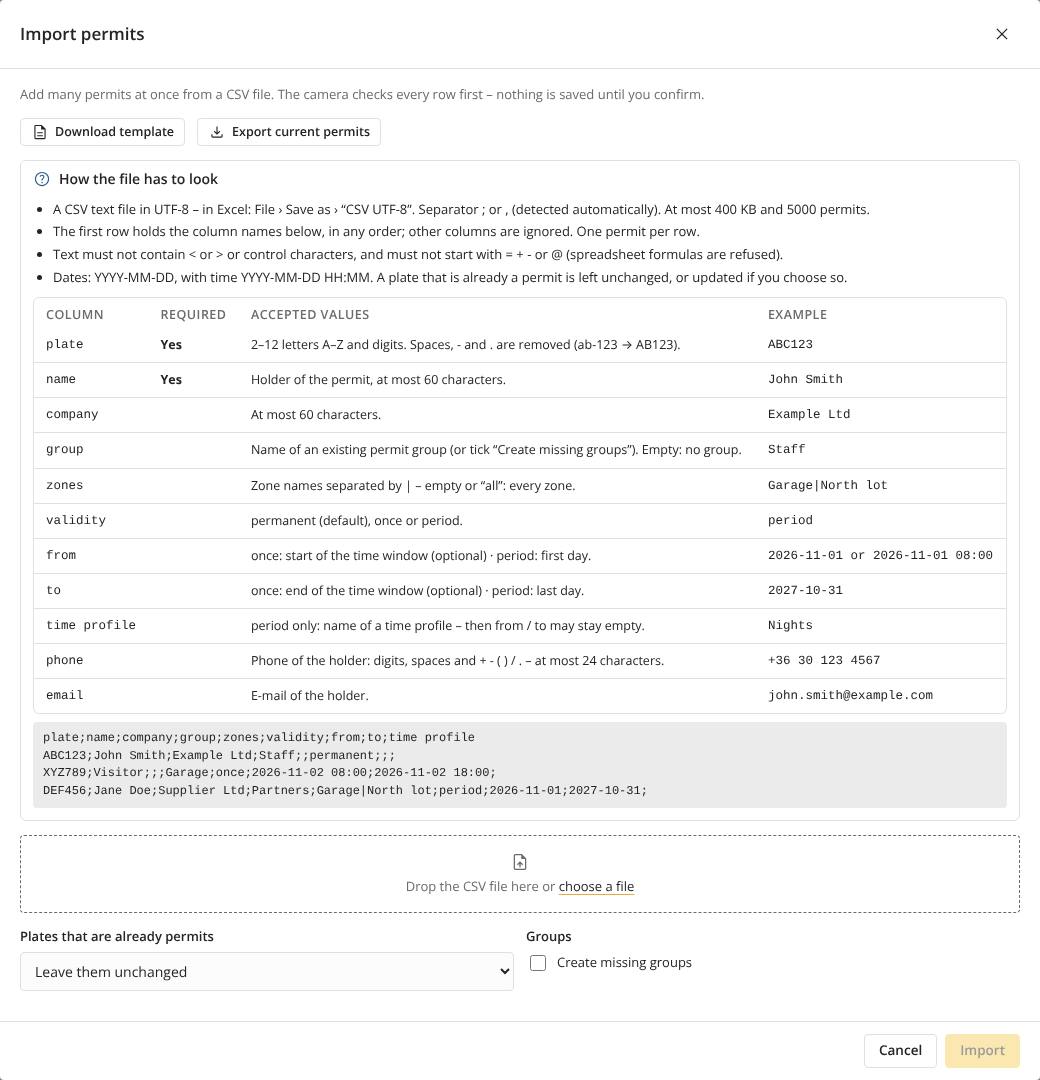
| Column | Content |
|---|---|
plate * | ABC123 – spaces, - and . are removed |
name * | holder |
company, phone, email | optional |
group | existing group name (or tick “Create missing groups”) |
zones | zone names separated by |; empty = every zone |
validity | permanent (default), once or period |
from, to | YYYY-MM-DD or YYYY-MM-DD HH:MM |
time profile | period only: a time profile instead of from / to |
Export CSV writes the permits in the same format, in an encrypted ZIP (see Exports are always encrypted). Cells that look like formulas get a leading apostrophe, so a spreadsheet does not run them; the import removes it again, so an exported file can be imported back.
14. Plate corrections
If a camera regularly reads a plate wrongly (e.g. B as 8), add a correction: Read as → Corrected to the plate of a permit, optionally correcting the vehicle data (strong criteria) too. The correction is applied before the permit is checked; the App log shows both plates. The App log row action creates a correction from a wrong read.
15. Users and roles
Users
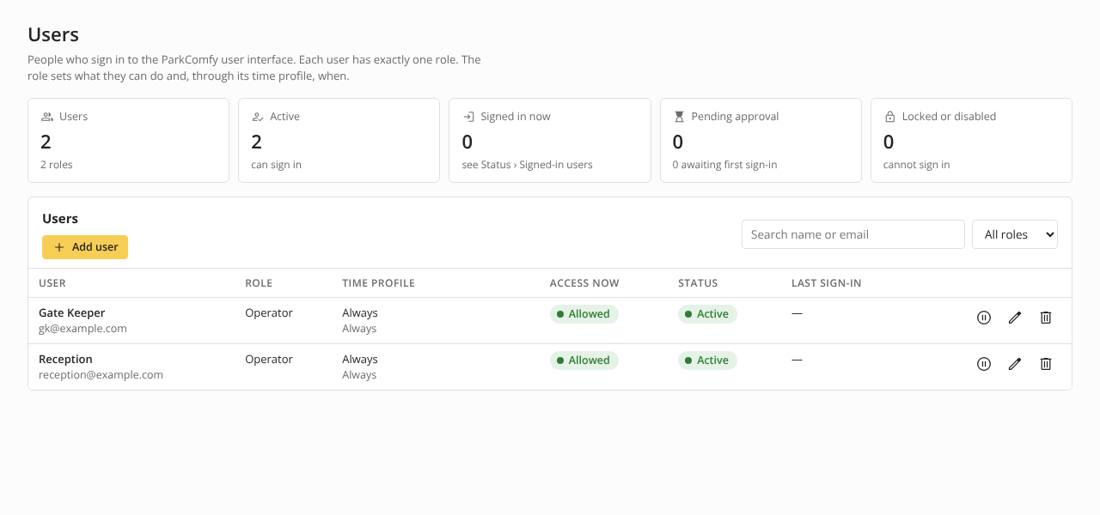
People who sign in at /local/parkcomfy/app/. A new user gets a temporary password and creates their own at the first sign-in, following the camera’s password policy. Optional: allowed IP addresses, self-registration with approval, account lockout and session limits (Settings › Security › Sign-in and sessions). Axis administrators sign in with the camera account and are always administrators.
Roles
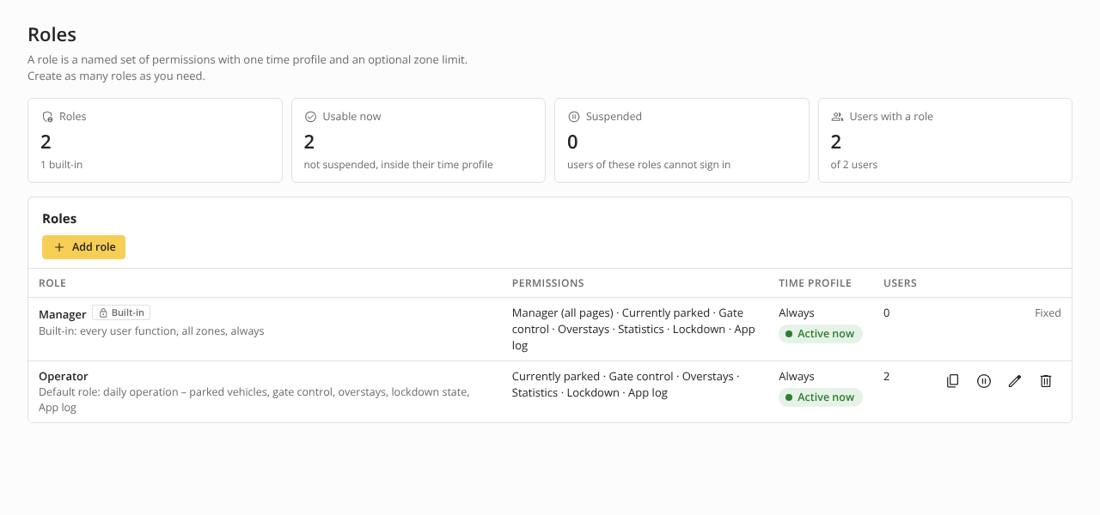
A role is a set of permissions with a time profile and an optional zone limit. The built-in Manager role can do every user function in every zone; the default Operator role covers daily operation. For each page you choose view or edit, the zones, and special rights (e.g. open gates, let guests continue to another zone, export). A user without a role can sign in but cannot use the app.
16. Time profiles
A time profile has an optional validity period and time windows (each with its own days and hours; a window may continue past midnight). On exception days (public holidays, company events) the exception replaces the weekly schedule: no access, or special hours.
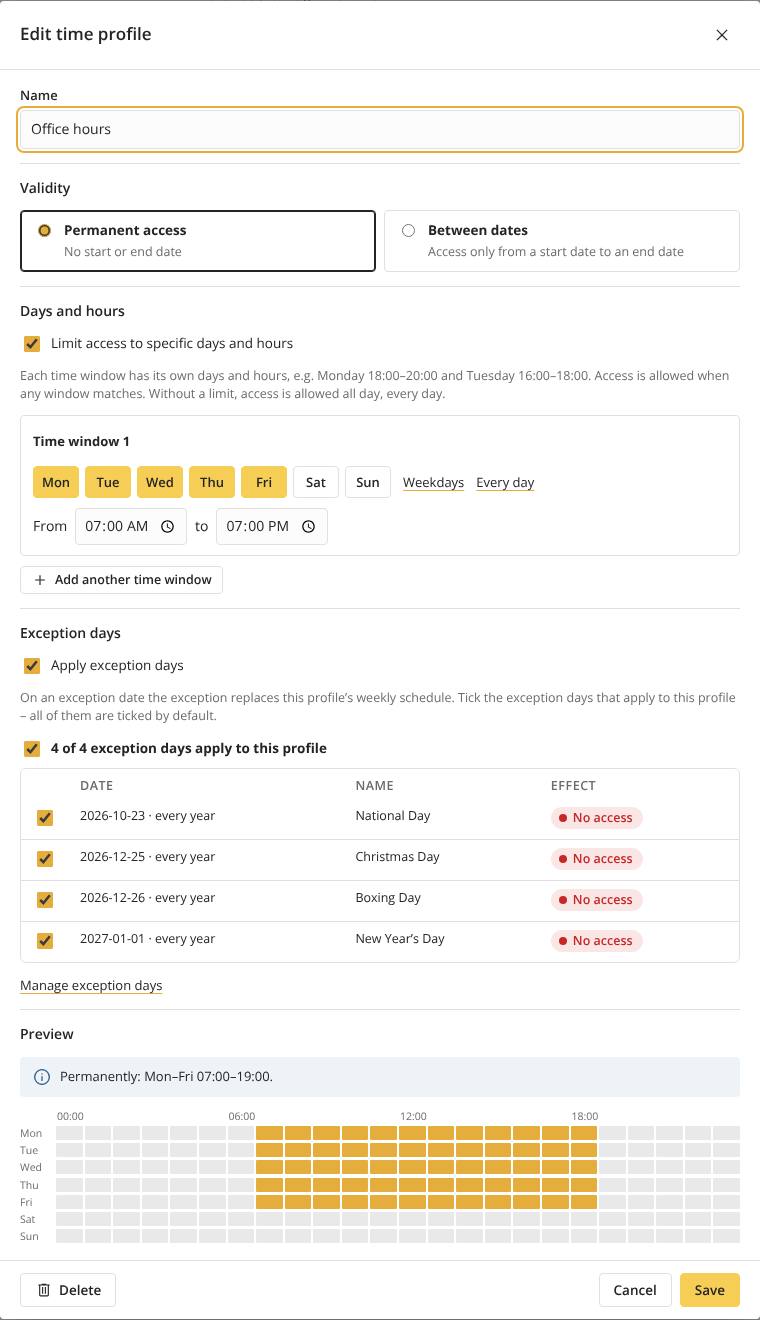
- The profile editor lists all exception days; each can be ticked off for this profile only (all are ticked by default).
- Import public holidays loads the holidays of a country for this or next year.
- Pausing a profile closes everything that uses it. A profile in use by a role, permit or zone cannot be deleted.
17. Active Directory
Settings › Security › Sign-in and sessions › Active Directory
Domain sign-in
Domain accounts sign in with their Windows user name and password; the password is checked by the domain controller and never stored. Only accounts added on Users (Add domain user) may sign in, and their role is set in ParkComfy – membership in an AD group alone never gives access.
Permit import
Users in a <prefix>Permit-<group> AD group get a permit for each of their plates in that permit group; optional <prefix>Zone-<zone> groups limit the zones. Imported permits are read-only in ParkComfy and follow AD: disabled accounts are suspended, removed ones are deleted, the account expiry date ends the permit.
| Field | Default attribute |
|---|---|
| Name / sign-in name / e-mail / company / phone | displayName / userPrincipalName / mail / company / mobile |
| Plates | carLicense (several values or “;”) |
| Vehicle, validity, note | parkComfyVehicle, parkComfyValid, parkComfyNote – need the ParkComfy schema extension (.ldf, OIDs under IANA PEN 67168) |
| Always read | memberOf, userAccountControl, accountExpires |
Use LDAPS. Test connection checks the server, the service account, every mapped attribute and the groups. Synchronization runs every 24 hours by default (5 minutes to 24 hours); Sync now runs it at once, and the last result and next run are shown.
18. API integration
Settings › Security › API integration lets other systems – reporting, a VMS, a SIEM – read data from ParkComfy. The API is read-only: nothing can be changed through it. It is off until an Axis administrator switches it on.
How the data is protected
- Client certificates. Each system gets its own certificate, issued by a CA that is in the camera’s CA store (System › Security › CA certificates in the camera web interface). Only the certificate is given to ParkComfy – the private key never leaves the client system. The chain is checked when the client is added and at every request: a removed CA, an expired certificate or a revoked one stops the access at once.
- Signed, single-use requests. Every request carries a token signed with the client’s private key. It is valid for at most 5 minutes, can be used once, and only for the request it was made for (method, endpoint and query).
- Encrypted, signed answers. The answer is encrypted for the client’s certificate, so only that client can read it – even if the HTTPS connection is inspected by a proxy or logged. Inside, it is signed by this ParkComfy installation; the client checks the signature with the public key shown on the page.
- Limits per client: which data, which zones, from which IP addresses and until when. A client can be paused or deleted at any time; at most 120 requests a minute.
- Logging: adding, changing and deleting clients, switching the API on and off, refused requests and an hourly summary of the requests of each client go to the System log.
Adding a client
- Have the CA certificate in the camera’s CA store, and a client certificate issued by it (EC P-256 / P-384 or RSA 2048+; key usage digital signature; extended key usage, if present, client authentication).
- Switch API access on.
- Add client: name, the certificate (paste or choose the file – the page shows at once whether it is accepted), the data, the zones, the allowed IP addresses, an optional end date.
- Give the developers the address, the public signing key (PEM or JWKS) and the example client.
For developers
Address: https://<camera>/local/parkcomfy/app/api/v1/<endpoint> – GET only.
| Endpoint | Data (scope) | Parameters |
|---|---|---|
info | app, version, camera, the client’s own rights (any client) | – |
zones | zones with capacity, parked vehicles, free spaces (Currently parked) | – |
parked | vehicles parked now (Currently parked) | zone |
applog | plate reads and manual openings (App log) | from to fromt tot zone res q limit offset after – after=<lastId> returns the newer entries, oldest first, for regular polling |
stats | occupancy, entries, stays per day and 15 minutes (Statistics) | from to (YYYY-MM-DD) |
permits | all permits with validity and state (Permits) | – |
syslog | System log (System log) | from to q limit offset |
Request – header X-API-Token: <JWT> (or Authorization: Bearer), a JWS signed with the client’s private key:
header  {"alg": "ES256" | "ES384" | "RS256" | "PS256", "typ": "JWT", "x5t#S256": base64url(SHA-256 of the certificate, DER)}
payload {"aud": "parkcomfy", "iat": now, "exp": now + 60 (at most 300), "jti": "<unique>",
         "htm": "GET", "htu": "/v1/applog", "qsh": base64url(SHA-256 of the raw query string)}
Answer – application/jose: a JWE for the client’s key (ECDH-ES for EC, RSA-OAEP-256 for RSA; A256GCM). Its content is a JWT signed by the installation (ES256): {"iss": "parkcomfy:<serial>", "aud": "<x5t#S256 of the client>", "req": {"jti", "htu"}, "data": {…}}. Check the signature, and that req.jti is the jti of your request.
Errors are plain JSON {"error", "code"} and never hold data: api_off, no_token, bad_token, unknown_client, bad_signature, bad_alg, bad_claims, token_time, token_binding, replay, client_paused, client_expired, ip_refused, not_trusted, scope, rate.
The example client (Example client (Python) on the settings page; pip install jwcrypto) does all of this:
python3 parkcomfy_api_client.py --url https://192.168.0.90 --cert client.crt --key client.key \
    --cacert camera_https_ca.pem --sign-key parkcomfy_api_signing_key.pem  applog after=0 limit=500
19. Axis events
ParkComfy reports what happens as events of the camera it runs on. A VMS such as Milestone XProtect, or an event rule of the camera (System › Events in the camera web interface), can react to them: raise an alarm, start a recording, switch an output, send a notification. The events are set on Settings › Axis events.
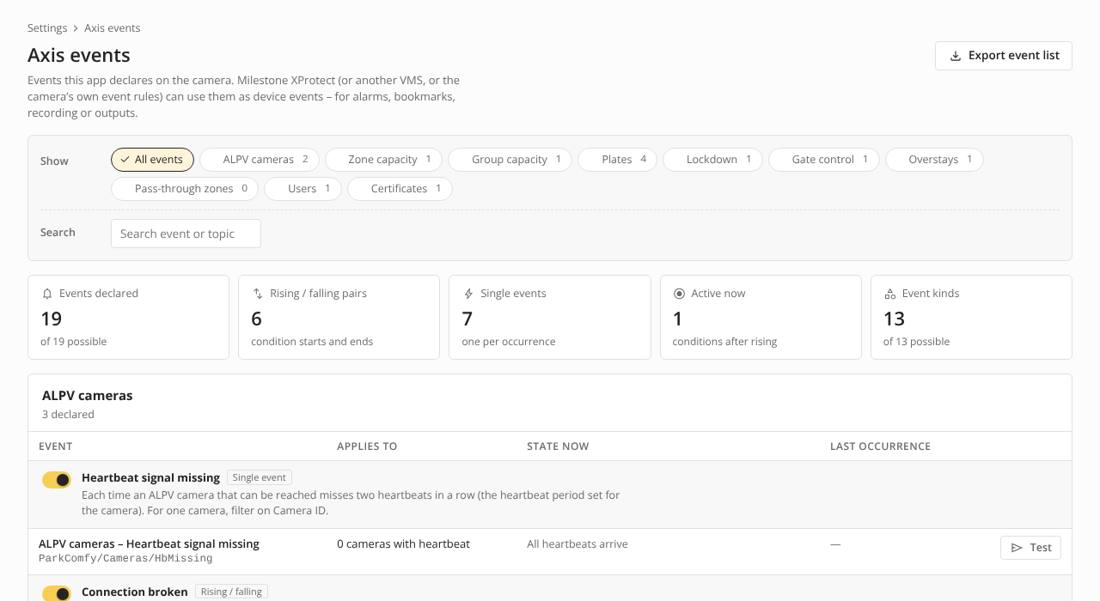
How the events are built
- Ten events. ParkComfy declares ten events: ParkComfy - Plates, Permits, Zones, Groups, Gates, Vehicles, Users, ALPV cameras, Certificates and System. In the rule editor they are under ParkComfy. One event covers all cameras, zones, plates and groups – a rule picks what it is interested in by filtering on the data fields.
- Topic.
tnsaxis:CameraApplicationPlatform/ParkComfy/<event>, e.g.…/ParkComfy/Zones. The ALPV cameras event is…/ParkComfy/ALPVCameras. - Change tells what happened:
Zone full,Opened manually,Sign-in refused… Filter on it to pick one kind of change. (Plates has no Change field: every event is a plate read.) - State is set for conditions – something that starts and ends, such as a full zone or a broken camera connection:
Startedwhen it starts andEndedwhen it ends, with the same other field values. Use Started to switch something on and Ended to switch it off. For single happenings (a manual opening, a refused sign-in) State is empty. - Cause and Details tell why. Cause has fixed values for filtering; Details is a readable text for an alarm or notification.
- Values are text and are compared as written. Zone, group and holder names are exactly as they are in ParkComfy; plates are in capital letters without spaces (ABC123). Renaming a zone or group means changing the filters of the rules that use it.
- Data fields an event does not use are not declared; a field that does not apply to one change is sent empty.
Settings
On Settings › Axis events:
- The switch of an event declares it on the camera or removes it. A removed event is not shown in the rule editor.
- Under each event, every change has its own check box. A change that is not checked is not sent. Off by default: Permits – Added, Changed, Suspended, Resumed, Imported; Groups – Members changed; Users – Signed in. Switch these on for an audit trail in the VMS.
- “Almost full” level (%) – the percentage of the capacity (or of the group limit) at which Zone almost full and Group almost full start (default 90 %).
- “Expires soon” warning (days) – how many days before the end of a permit Permits – Expires soon is sent (default 7 days).
- Test sends the event with Change =
Test(Plates: PlateTEST123, ZoneTest, ResultTest), so that a rule can be tried without a real happening.
The events
| Event | Changes (State: ● = condition with Started / Ended) | Data fields |
|---|---|---|
| ParkComfy - Plates | One event for every plate read – with or without a permit – once for each zone it concerns, whatever the result. Test reads send none. | Plate, Zone, Camera ID, Direction, Result, Cause, Details, Permit group, Holder, Corrected from |
| ParkComfy - Permits | Used (a one-time permit let a vehicle in) · Expired · Expires soon · Inactive (no camera read it for the number of days set for inactive permits, see “Expired and inactive permits”) · Deleted · Added · Changed · Suspended · Resumed · Imported. Expired, Expires soon and Inactive are sent once for each permit. | Change, Cause, Plate, Holder, Permit group, Validity, Zone, Actor, Details |
| ParkComfy - Zones | Zone full ● · Zone almost full ● (zones with a capacity limit) · Zone closed ● (outside the opening hours) | Change, State, Zone, Details |
| ParkComfy - Groups | Group full ● (the group used all its spaces in a zone) · Group almost full ● · Group suspended · Group resumed · Members changed (permits moved into or out of the group) | Change, State, Permit group, Zone, Actor, Details |
| ParkComfy - Gates | Opened manually (on Gate control) · Locked ● (lockdown, for each gate) · Gate command failed (an I/O or network gate did not answer) · External system refused · No confirmation (external-confirmation gates) | Change, State, Zone, Gate, Plate, User, Reason, Cause, Details |
| ParkComfy - Vehicles | Overstay ● (a parked vehicle is over its limit) · Transit not completed ● (did not arrive in its target zone in time) · Removed by hand (from Currently parked) · Guest pass issued (a manual opening let a guest on to an inner zone) | Change, State, Plate, Zone, Permit group, Holder, User, Details |
| ParkComfy - Users | Sign-in refused · Account locked · Account unlocked · Address blocked · Registration request · Signed in · Session ended · User added · User deleted · Role changed · User disabled · User enabled · Password changed · API request refused (API integration) | Change, Cause, User, Account, Role, IP address, Actor, Details |
| ParkComfy - ALPV cameras | Connection broken ● · Heartbeat missing ● (two heartbeats in a row) · Clock difference ● (the clock of the ALPV camera differs from this camera) · Unknown sender (a push with a wrong token or from an unknown address; at most one a minute) | Change, State, Camera ID, Details |
| ParkComfy - Certificates | Expires soon ● (within its warning period or expired; ends when it is replaced or removed; checked once a day) | Change, State, Certificate, Device, Details |
| ParkComfy - System | Started (ParkComfy started) · License expires soon ● (7 days or less) · License expired ● (expired, not valid or no license) · Storage almost full ● (the storage warning level of Settings › Logs) · SD card problem ● (no SD card, or not encrypted – the internal storage is used) · Backup made · Configuration restored · Reset | Change, State, Details |
The state of a condition is checked every few seconds; a condition that is still true after ParkComfy restarts is sent again as Started.
Data fields and values
| Field | Value |
|---|---|
| Change | What happened – one of the changes listed above, or Test. |
| State | Started or Ended for a condition (● above); empty otherwise. |
| Plate | The plate as read (after a plate correction, the corrected plate), capital letters and digits without spaces: ABC123. Gates – Opened manually: the plate typed by the user, or empty. |
| Corrected from | Plates: the plate as the camera read it, when a plate correction changed it; empty otherwise. |
| Zone | The name of the zone: Main car park. Plates: one zone; when one camera serves two zones (the exit of one and the entry of the other), one event is sent for each. Transit not completed: the target zone. Permits – Used: the zone it was used in. |
| Camera ID | The Camera ID of the ALPV camera, as set on ALPV cameras: MAIN-IN. |
| Direction | Plates: Entry or Exit – how the zone took the read (by its entry or exit camera, the direction reported by ALPV, or by presence). Empty when the camera is not used by any zone. |
| Result | Plates: Allowed – may pass · Refused – the gate stays closed (see Cause) · Logged – the camera is not used by any zone, the read is only logged. Each event carries the result of its own zone. |
| Permit group | The name of the permit group: Staff. Empty when the permit has no group. |
| Holder | The name on the permit (the company when there is no name). Empty for a vehicle without a permit. |
| Validity | Permits: Permanent, Period or One-time. |
| Gate | Entry or Exit. |
| User | Gates and Vehicles: the user who opened the gate or removed the vehicle (e-mail of an app user, or the Axis account). Users: Name (e-mail), or the e-mail address or domain login that was typed when there is no such user; API request refused: the name of the API client. |
| Account | Users: App user, Domain user or API client; empty when the user is unknown. |
| Role | Users: the role of the user. |
| IP address | Users: the address the request came from. |
| Actor | Who made a change: the user or administrator (Permits, Groups, Users). Empty when ParkComfy did it by itself. |
| Reason | Gates – Opened manually: the reason chosen: Visitor without permit, Delivery, Permit not recognised, Plate not readable, Emergency, Other. |
| Certificate | The subject (name) of the certificate. |
| Device | Where the certificate is used: This camera, a Camera ID, or the name of a server (e.g. an Active Directory server). |
| Details | A readable text, the same as in the App log or System log: the full reason of a refusal, 118 / 120 vehicles, Valid until 2026-11-30, Expires in 12 days (2026-11-30)… For showing in an alarm – filter on Change and Cause instead. When a condition ends, Details says why (Connection restored, Released…). |
Values of Cause
| Event – Change | Cause |
|---|---|
Plates (Result Refused) | No permit – the plate is not in the permit list · Vehicle mismatch – the country, make, model or colour differs from the strong criteria of the permit · Not valid for this zone – the permit is limited to other zones · Not valid now – expired, not valid yet, or outside the entry time of the zone · Suspended – the permit or its group is suspended · Not allowed here – the zone admits other groups or permits only · Zone closed · Zone full · Group full · Lockdown. Empty when allowed. |
| Permits – Deleted | By a user · Expired – deleted automatically (automatic clean-up of expired permits) · Removed in Active Directory |
| Permits – Added, Changed… | Active Directory when Active Directory made the change; empty otherwise. |
| Users – Sign-in refused | Unknown user · Wrong password · No password set · Waiting for approval · Account locked · Account disabled · Address blocked · Temporary password expired · No role · Role suspended · Outside the time profile · Time profile paused · IP address not allowed · Domain controller not reachable · Domain account not added. Unknown user, Wrong password and Address blocked are sent at most once a minute from one address. |
| Users – Account locked | Failed attempts · By administrator |
| Users – Account unlocked | Lockout time over · By administrator |
| Users – Address blocked | Too many failed sign-ins |
| Users – Session ended | Signed out · Inactivity · Maximum length reached · Ended by administrator |
| Users – Password changed | By the user · Reset by administrator · Temporary password issued |
| Users – API request refused | The error code of the API answer (see chapter 18). |
Examples
A vehicle may drive into a zone
Event ParkComfy - Plates with the filters Zone = Garage, Direction = Entry, Result = Allowed. Add Camera ID to pick one lane. It covers vehicles with and without a permit (“Any vehicle” zones); a manual opening gives Gates – Opened manually instead. The event tells the decision – where an external system opens the gate, the vehicle may still not drive in.
Unknown plate at the main entrance
Event ParkComfy - Plates, Camera ID = MAIN-IN, Cause = No permit. Show Plate in the alarm.
Possible false plate – alarm in the VMS
Event ParkComfy - Plates, Cause = Vehicle mismatch. Show Plate, Camera ID, Holder and Details in the alarm.
“Full” sign at the entrance
Event ParkComfy - Zones, Change = Zone full, Zone = Main car park. Rule 1: State = Started → turn the output of the sign on. Rule 2: State = Ended → turn it off. (A camera rule set to “while the condition is true” can do it with one rule.)
A group used all its spaces
Event ParkComfy - Groups, Change = Group full, State = Started, Permit group = Visitors → notify the reception.
Emergency opening
Event ParkComfy - Gates, Change = Opened manually, Reason = Emergency → notify the security manager; Zone, Gate and User tell who opened which gate.
A gate did not open
Event ParkComfy - Gates, Change = Gate command failed → alarm to maintenance; Details tells the error.
Staff over the limit
Event ParkComfy - Vehicles, Change = Overstay, State = Started, Permit group = Staff.
One-time visitor permit used
Event ParkComfy - Permits, Change = Used → notify the host; Holder and Zone tell who arrived where.
Sign-in from a wrong address or at a wrong time
Event ParkComfy - Users, Change = Sign-in refused, Cause = IP address not allowed (or Outside the time profile). Show User and IP address in the alarm. For possible password guessing use Change = Address blocked or Account locked.
ALPV camera offline
Event ParkComfy - ALPV cameras, Change = Connection broken, State = Started → alarm; State = Ended → close it.
License or storage problems
Event ParkComfy - System, State = Started → e-mail to the administrator; Change and Details tell what to do.
20. Settings
Settings are available to Axis administrators.
| Page | Contents |
|---|---|
| Identification | Installation name and how the camera and its data are named. |
| Date and time | Date and time format of the app (the camera clock is always used). |
| Languages | Display language, fallback language, custom languages (editor or language package), user guide of each built-in language. |
| User interface | Access to the app interface, self-registration, message while unavailable. |
| Privacy notice | The notice shown to app users – or a link to your own page. Mention that plates, names, phone numbers and e-mail addresses are processed. |
| Security | Password policy (follows the camera), sign-in and sessions (lockout, inactivity, maximum length, IP addresses, Active Directory), API integration (see chapter 18), certificates (trusted CAs, certificate checks, HTTP to cameras). |
| Axis events | See chapter 19. Ten events declared on the camera for a VMS (e.g. Milestone XProtect) or camera event rules – Plates, Permits, Zones, Groups, Gates, Vehicles, Users, ALPV cameras, Certificates, System. Each event and each of its changes can be switched on or off; the almost-full percentage and the expires-soon days are set here. |
| Logs | How long the App log, System log and statistics are kept; plate and vehicle images; storage warning. |
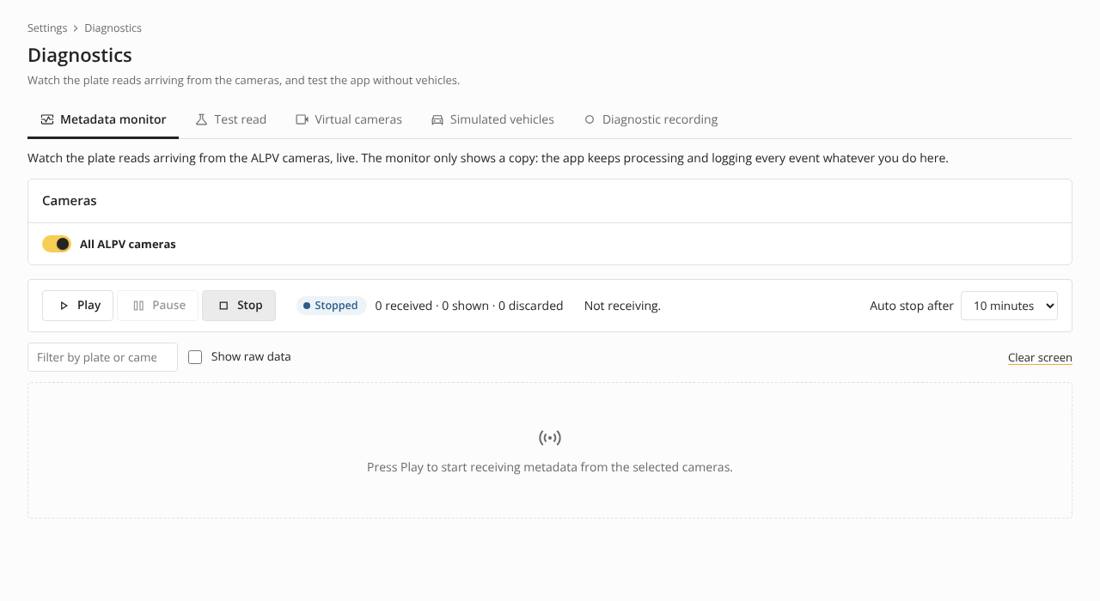
| Diagnostics | Metadata monitor (reads as they arrive), test read, simulation with virtual cameras and generated vehicles (dry run keeps gates closed), diagnostic recording. |
| Maintenance | Backups and reset – see the next chapter. |
21. Maintenance and backups
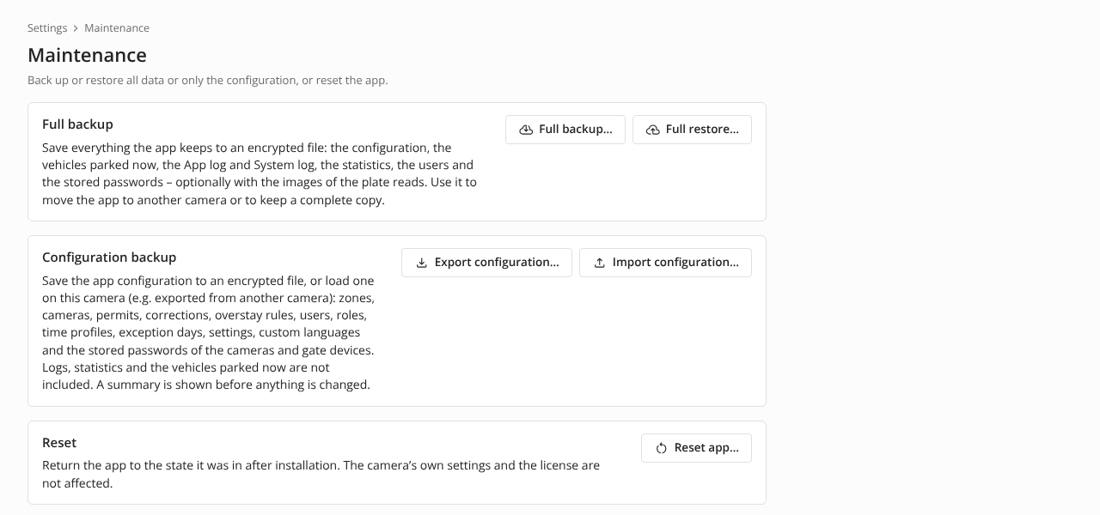
| Backup | Contents | Use |
|---|---|---|
| Full backup | Everything: configuration, parked vehicles, App log, System log, statistics, users and stored passwords – optionally the images. | Complete copy; moving the app to another camera. |
| Configuration backup | Zones, cameras, permits, corrections, rules, users, roles, time profiles, settings, custom languages, stored passwords. No logs, statistics or parked vehicles. | Copying a setup to another site. |
Both files are always encrypted with a password you choose (following the password policy). The password cannot be recovered – keep it safe.
Restoring: the file is uploaded and checked first; a summary shows what it contains. If the backup was made on another camera, ParkComfy says so and lists what to check afterwards (license stays with this camera, ALPV push to be set up again, I/O gates, network gates, Axis event rules). You can still cancel. The current data is kept in a before-restore folder.
Reset returns the app to its state after installation. The camera’s own settings and the license are kept.
Removing ParkComfy
ParkComfy keeps its data in the camera’s internal storage, or – when an encrypted SD card is set up – on the SD card. Removing the app deletes its folder in the internal storage, but not its data on the SD card. The key of the stored passwords is always kept in the internal storage, so it is removed with the app.
When ParkComfy is removed for good, or the camera goes to another site, delete its data as well – in one of these ways:
- Before removing: Reset on the Maintenance page, then remove the app.
- After removing: delete the content of the SD card (format it in the camera web interface, System › Storage). Formatting also deletes everything else on the card, e.g. recordings.
Make a full backup first if the data may be needed again.
Installing again: data of an earlier installation found
If ParkComfy is installed again and finds the data of an earlier installation on the SD card, an Axis administrator is asked when opening the admin pages (the System log records it as well):
- Keep the data – zones, permits, users, settings, logs and statistics are used. The stored passwords could not be kept (their key was removed with the app): enter the passwords of the ALPV cameras and the gate devices again. Keeping needs a full license for this camera – it is not possible with a trial license or without a license. If the earlier data holds the full license of this camera, it is valid at once; otherwise Install a license in the question.
- Start clean – all data of the earlier installation is deleted and ParkComfy restarts with factory settings. The license of this camera is kept.
Until a choice is made (Decide later), ParkComfy asks again next time. Meanwhile it works with the data found only with a full license; with a trial license or without a license it does not process plate reads or open gates.
The stored passwords cannot be read on any other camera, as their key never leaves the camera that made them; the rest of the data on the card is protected by the encryption of the SD card.
22. Status and license
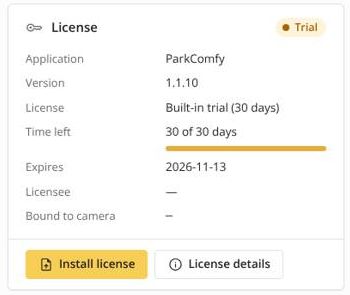
The Status page shows the license, the device, resources and storage, the app, the time sync and the signed-in users. Install license loads a license file; License details shows its data and history.
Licenses
ParkComfy needs a license file. It is bound to the serial number of the camera that runs ParkComfy (shown on the Status page) and cannot be used on another camera.
| License | Valid |
|---|---|
| Trial license | Free, every feature, 60 days from the day it was issued (the issue day is day 1). Request it at www.parkcomfy.com with your e-mail address and the serial number of the camera – the license file arrives by e-mail at once. Install license on the Status page opens the request page with the serial number filled in. One trial license per camera; installing the app again does not extend it. |
| Full license | Without an end date, or until the date in the license. |
Without a valid license – none installed, the trial or the license expired – the pages stay available, but ParkComfy does not process plate reads or open gates. A banner on the admin pages and the Axis event System – License expired tell this; License expires soon warns 7 days before the end.
License agreement. ParkComfy is used under its End User License Agreement. It binds the end user of the camera (the Licensee) – also when a system integrator installs, configures or operates ParkComfy on the end user’s behalf. When the admin pages are opened for the first time, an Axis administrator accepts it (as the end user, or as its contractor); the acceptance is recorded in the System log. The agreement and the third-party notices (open-source components) are always available on the Status page.
Camera time. A license with an end date is checked against the latest camera time ParkComfy has seen, so setting the clock back does not extend it. If the clock is set back by more than a day, or is earlier than the issue date of the license, the license is not accepted until the correct time is set.
23. Troubleshooting
| Symptom | Check |
|---|---|
| “ParkComfy is not ready yet” | AXIS OS 12.9 or later and a password policy (Length or Complexity) on the camera. The page checks again every 30 seconds. |
| No reads arrive | ALPV cameras › Event delivery and Test; Diagnostics › Metadata monitor; the ALPV push profile and its HTTPS setting; the camera is not paused. |
| A permitted vehicle is refused | The App log row says why: permit not valid now, outside the entry time or opening hours, zone full, group full, vehicle mismatch, lockdown. The plate may be read wrongly – add a plate correction. |
| The gate does not open | Parking zones › gate › Test gate; the output port and its active state; the HTTP address; Lockdown. |
| Camera clock differs | Set all cameras to the same NTP server. |
| Domain user cannot sign in | The account must be added on Users and have a role; AD Test connection; LDAPS certificate trusted. |
| An Axis event rule does not fire | The event and the change are switched on in Settings › Axis events (some changes are off by default); the filter values are written exactly as in ParkComfy (Change values, zone and group names, Camera ID, plate in capitals without spaces); a condition rule filters on State = Started. Plates is not sent for test reads. Use Test to try the rule; the Diagnostics recording lists the events that were sent. |
| Settings are still there after the app was removed and installed again | The data was on the SD card – removing the app does not delete it. Choose Keep the data or Start clean in the question on the admin pages; see Removing ParkComfy. |
| Storage warning | Shorter retention or no images in Settings › Logs; use an encrypted SD card. |
ParkComfy · © Attila Kalcsó · Axis, AXIS OS and AXIS License Plate Verifier are trademarks of Axis AB.